


Think someone might be tracking your phone or reading your WhatsApp messages? There are 7 concrete signs of phone spying you can check today - no technical knowledge needed, no special tools required. Each sign comes with an explanation of why it happens and exactly what to do about it.
Quick Overview - 7 Signs of Phone Spying
| # | Sign | Severity | Where to Check | Urgency |
|---|---|---|---|---|
| 1 | Sudden battery drain | 4/5 | Settings > Battery > Battery Usage | High |
| 2 | Increased data usage | 4/5 | Settings > Network > Mobile Data Usage | High |
| 3 | Overheating without reason | 4/5 | Device Care / Samsung Health | Medium |
| 4 | Unknown apps | 5/5 | Settings > Apps > See all apps | Critical |
| 5 | Strange noises during calls | 2/5 (alone), 4/5 (with others) | USSD codes *#21#, *#62# | Medium |
| 6 | Slower performance and freezing | 3/5 | Safe Mode test | Medium |
| 7 | WhatsApp Linked Devices | 5/5 | WhatsApp > three dots > Linked Devices | Critical |
None of these signs proves phone spying on its own - but a combination of three or more, especially unknown apps or suspicious WhatsApp sessions, is a serious reason to act. The good news is that each of these signs of phone spying can be verified in just a few minutes.
1. Sudden Battery Drain
 Photo: Szabó Viktor, Pexels
Spyware running in the background continuously collects data - your calls, SMS messages, location, photos - and sends it to a remote server. It runs all the time, without stopping, so a battery that used to last two days suddenly barely makes it to noon.
Norton's mobile threat analysis identifies sudden, unexplained battery drain as one of the first signs of phone spying that users notice - and one of the easiest to spot without any technical check.
| What to Check | How |
|---|---|
| Battery usage list | Settings > Battery > Battery Usage |
| High-consumption unknown apps | Sort by usage and look for what you don't recognize |
| Sign severity | 4/5 |
| Solution | Safe Mode, antivirus scan, uninstall suspicious apps |
Advantages of this sign: easy to notice daily, usage is measurable and comparable with previous weeks.
Disadvantages / false positives: old battery, heavy use, poorly optimized apps can cause the same effect - look for a combination with other signs.
Our opinion: If your battery starts draining significantly faster without any change in your habits - you didn't install a new app, you didn't start watching more videos - that's worth investigating. Just open the battery usage list and look for something unfamiliar. If you see an app with a generic name consuming 20% of your battery daily, and you don't remember installing it, go straight to sign 4 - Unknown Apps.
2. Increased Mobile Data Usage
 Photo: RDNE Stock project, Pexels
Spyware has to send the data it collects somewhere. Calls, messages, photos, GPS coordinates - all of it travels to the attacker's server and consumes your mobile data, most often at night when you're not using your phone.
Kaspersky's spyware research identifies increased data usage as one of the most reliable measurable signs of phone spying - unlike battery levels, data consumption can be precisely quantified through carrier reports.
| What to Check | How |
|---|---|
| Per-app overview | Settings > Network > Mobile Data Usage |
| Detailed report | Request hourly usage breakdown from your carrier |
| What to look for | Apps with high consumption you don't recognize |
| Sign severity | 4/5 |
| Solution | Restrict internet access for suspicious apps, run antivirus |
Advantages of this sign: clearly measurable and comparable, carrier can provide a detailed report showing exactly when usage spiked.
Disadvantages / false positives: legitimate app updates, background streaming, or a new app can cause spikes - always compare multiple consecutive weeks.
Our opinion: This is one of those signs worth monitoring regularly, not just when you're suspicious. If you notice your phone bill creeping up without an obvious reason, or you're running out of data before your billing period ends, check your per-app data breakdown. Spyware running at night shows up there easily - an app called "System Service" or "Android Helper" that consumed 500MB at 3am is not legitimate.
3. Device Overheating Without Reason
 Photo: John Tekeridis, Pexels
Spyware recording audio through your microphone, tracking your GPS location, or continuously capturing your screen keeps the processor constantly active - which generates heat. A phone that gets warm while sitting untouched on a table is a physical sign that something is running in the background.
Kaspersky's guide to Android spyware highlights overheating as one of the more concerning signs of phone spying precisely because it occurs when the user isn't doing anything - there's no explanation for high temperature when a phone is idle.
| What to Check | How |
|---|---|
| Samsung devices | Device Care > Device Health |
| Other Android | Press the back of the phone with your palm - warm while idle? |
| Sign severity | 4/5 |
| Solution | Safe Mode, check Accessibility permissions, antivirus scan |
Advantages of this sign: physically noticeable, requires no technical check - touching the phone is enough.
Disadvantages / false positives: high ambient temperatures, poor ventilation (in a bag, in the sun), or demanding games and streaming can cause the same effect.
Our opinion: Overheating on its own means nothing if you've been watching video for an hour. But if you pick up a phone that's been sitting on a cool table for an hour and it's warm - that's not normal. Combined with battery drain or increased data usage, this is a sign you should dig deeper into your app list and Accessibility permissions.
4. Unknown or Suspicious Apps
 Photo: Abdulkadir Emiroğlu, Pexels
Severity 5/5 - and the reason is straightforward: an app is direct, visible evidence that something was installed. Spyware usually gets a generic, seemingly legitimate name - "System Update", "Cache Manager", "Phone Monitor", "Android Service". On iPhone, the presence of the Cydia app is proof the device has been jailbroken.
According to Norton's spyware detection guide, attackers with physical access to a phone can install spyware in under two minutes. The app has no home screen icon - the only place to find it is in the full list of installed applications. That's exactly why unknown apps are among the most critical signs of phone spying you should never ignore.
| What to Check | How |
|---|---|
| Android - all apps | Settings > Apps > See all apps > sort by installation date |
| Android - Device Admin | Settings > Security > Device Admin Apps - suspicious apps with admin rights |
| iPhone | Settings > General > iPhone Storage; look for Cydia app |
| Sign severity | 5/5 - direct evidence |
| Solution | Uninstall immediately, remove Device Admin permissions, antivirus scan |
Advantages of this sign: direct evidence of malware presence, relatively easy to check without special tools.
Disadvantages / limitations: advanced spyware is very good at hiding by mimicking legitimate Android system apps - sometimes it's hard to tell a real system app from a fake one.
Our opinion: This is a check I'd recommend for everyone once every three months, not just when you're suspicious. Sort your apps by installation date and look at what was installed in the last 30 days - do you recognize everything? If you see something with a generic name you didn't install yourself that has Accessibility or Device Admin permissions, that's your number one priority. No panic - uninstall it and immediately change passwords on all important accounts.
5. Strange Noises During Calls
 Photo: Kaboompics, Pexels
Calls being routed through third-party servers bring latency and audio distortions - clicks, static, echo. The sounds alone are the weakest sign (severity 2/5) because poor signal can cause identical effects. But alongside this sign comes the most useful tool available for a quick check - USSD codes that tell you in 10 seconds whether your calls are being forwarded somewhere.
Norton's USSD code guide confirms these codes are completely safe - they only read information from your carrier's network and don't change anything (except *#002# which disables forwarding).
| USSD Code | What It Checks |
|---|---|
| *#21# | Unconditional forwarding of all calls |
| *#61# | Forwarding when you don't answer |
| *#62# | Forwarding when you're unreachable |
| *#67# | Forwarding when you're busy |
| *#002# | DISABLES all call forwarding at once |
Advantages of this sign: USSD codes give an immediate, reliable answer about call forwarding - no apps, no technical knowledge, works on any phone.
Disadvantages / false positives: the sounds themselves (clicks, static) are caused by poor signal in 95% of cases, not spying - rely on the USSD check, not your impression.
Our opinion: Sounds on their own don't tell you anything useful. What does tell you something is *#21# - dial it the moment you have a nagging feeling that something is off. If you see an unknown number your calls are being forwarded to, that's a concrete problem to report to your carrier immediately. And *#002# is worth dialing preventively once a year - it kills any active forwarding with a single button press.
6. Slower Performance and Freezing
 Photo: Selcuk Sarikoz, Pexels
Spyware running in the background can consume 15-40% of your processor for monitoring, logging, and sending data, according to Kaspersky's Android spyware research. When a third of your processor is working for someone else, a relatively new phone starts behaving like it's five years old.
Safe Mode is your friend here - Android in that mode runs only system apps, without anything you've installed yourself. A fast phone in Safe Mode means one concrete problem: some app is taking up too much.
| What to Check | How |
|---|---|
| Memory usage | Settings > Device Care > Memory |
| Safe Mode test | Long-press the power button > select Safe Mode |
| Sign severity | 3/5 |
| If fast in Safe Mode | Problem is from a third-party app - identify and uninstall |
| Solution | Cache clearing, uninstall suspicious apps, antivirus, factory reset |
Advantages of this sign: Safe Mode test is reliable and unambiguous - gives a clear answer whether the cause is an app or something else, without any technical knowledge.
Disadvantages / false positives: slowness is most often caused by full internal storage, too many open apps, or an aging device - Safe Mode test separates the causes.
Our opinion: Slower performance is the sign users most often attribute to "the phone getting old" and ignore for years. If your phone is less than three years old and suddenly performs worse than when you bought it, run the Safe Mode test - it takes 30 seconds. If it's fast and normal in Safe Mode, you have a concrete third-party app problem, and it's not necessarily spyware - but it's worth investigating.
7. WhatsApp Linked Devices and Suspicious Sessions
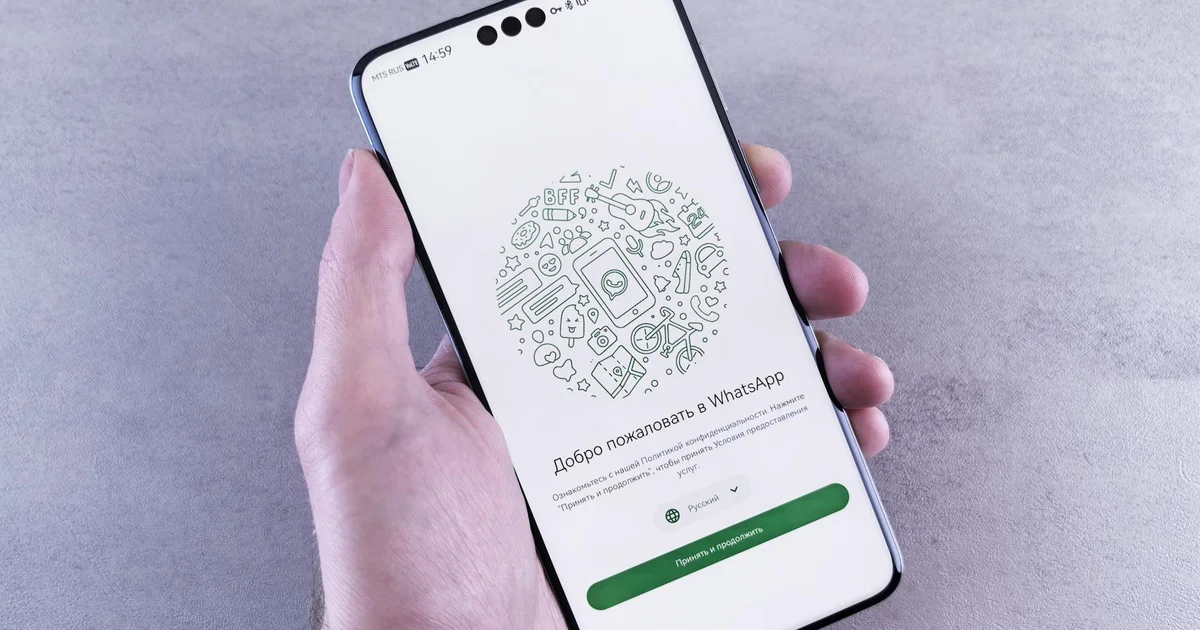 Photo: Andrey Matveev, Pexels
Severity 5/5 and the reason is clear: a WhatsApp Web or Desktop session gives an attacker full access to all your messages, photos, and contacts in real time - no spyware needed, no hacking, no notification on your phone. Once activated, a session can stay active for weeks.
Malwarebytes' analysis of the GhostPairing attack from December 2025 describes a new technique that counts among the most serious signs of phone spying: the attacker tricks you into scanning a QR code yourself and authorizing their device - and you think it's a legitimate action (for example, a fake notification from "WhatsApp support").
WhatsApp has over 2 billion users according to Malwarebytes data, making it one of the most attractive targets for these attacks.
| What to Check | How |
|---|---|
| Active sessions list | WhatsApp > three dots (top right) > Linked Devices |
| What to look for | Any devices and locations you don't recognize |
| Urgent action | Click the suspicious device > Log out |
| Two-step protection | Settings > Account > Two-step verification > set 6-digit PIN |
| Sign severity | 5/5 - direct access to all messages |
Advantages of this sign: the check is trivially simple - two clicks, you immediately see all active sessions, and logging out suspicious sessions is instant and effective.
Disadvantages / limitations: users rarely check this list (research shows most have never opened that menu), and the GhostPairing attack is hard to recognize in the moment because it looks like a legitimate action.
Our opinion: This is one of those checks worth doing right now - even if you have no reason to suspect anything. Go to WhatsApp > Linked Devices and see what's there. If you see "Chrome on Windows" with a location from a city you've never been to, or a device you don't recognize - log it out immediately. And while you're there, enable two-step verification if you haven't already. That's 60 seconds of work that protects you from the single biggest WhatsApp threat.
Conclusion - What to Do if You Recognize Signs of Phone Spying
If you recognize three or more signs of phone spying from this guide - especially unknown apps or suspicious WhatsApp sessions - it's worth acting now. Don't wait until you're certain: run through the 10-minute check in the table below.
| Priority | Action | Time |
|---|---|---|
| 1 | WhatsApp > Linked Devices - review and log out suspicious | 2 min |
| 2 | Dial *#21# and *#62# - check call forwarding | 1 min |
| 3 | Settings > Apps > See all apps - look for unknown apps | 5 min |
| 4 | Install Malwarebytes or Kaspersky and run a scan | 10 min |
| 5 | Enable WhatsApp two-step verification | 2 min |
| 6 | Change passwords on all important accounts | 15 min |
Protecting yourself from signs of phone spying isn't a one-time action - it's a regular habit. Once a week, check your WhatsApp Linked Devices. Once every three months, go through your installed apps list. Dial *#002# preventively once a year.
If you've done all the checks and suspicion remains, a factory reset is the nuclear option that guarantees a clean device - but make sure you back up your data first. Change passwords after the reset, not before, because spyware can intercept those changes too.
Frequently Asked Questions
How to know if someone is reading my WhatsApp messages?
Open WhatsApp and go to the three dots in the top right corner, then "Linked Devices". You'll see all active sessions with the device name and last activity location. If you see sessions you don't recognize, log them out immediately by clicking on the session and then "Log out". Then enable two-step verification in Account settings.
Which USSD codes check for phone tapping?
Dial *#21# to check for unconditional call forwarding of all calls - if you see an unknown number, your calls are going somewhere they shouldn't. For forwarding when you're unreachable, use *#62#. If you find suspicious forwarding, contact your carrier immediately and dial *#002# which deactivates all call forwarding settings at the network level.
Can spyware be installed without my knowledge?
Yes - and it happens more often than most users assume. The most common methods are fake apps downloaded outside the Play Store or App Store, phishing links that exploit browser vulnerabilities, and physical access to the phone. On iPhone, installing spyware requires a jailbreak - recognizable by the Cydia app. On Android, it's enough to have the "Install unknown apps" option enabled in security settings.
What to do if I suspect my phone is hacked?
Immediately restart your device in Safe Mode and run an antivirus scan - Kaspersky, Norton, or Malwarebytes are reliable tools. Simultaneously check WhatsApp Linked Devices and log out all unfamiliar sessions. Dial USSD codes to check for call forwarding and deactivate all with *#002# if needed. Delete all apps you don't recognize. If suspicion remains despite everything - factory reset is the only guarantee of a clean device.
Is faster battery drain a definite sign of phone spying?
On its own, no - faster battery drain can be caused by battery age, heavy use, a bad update, or a poorly optimized legitimate app. Battery drain only becomes a serious sign when combined with device overheating while idle, a sudden spike in mobile data usage, and the presence of apps you don't recognize. If all three appear simultaneously, it's no longer a coincidence.
How We Tested and Selected
This list of signs of phone spying was built from documentation and research reports of four leading security companies - Norton, Kaspersky, Avast, and Malwarebytes. Every sign is backed by a real technical mechanism (why spyware causes that symptom), not just claims.
We put particular emphasis on distinguishing false positives - every symptom that can have a benign explanation is flagged with a concrete alternative cause. We used Norton's mobile threat analysis for the general sign overview, Kaspersky's Android spyware guide for technical details, Malwarebytes' GhostPairing research for WhatsApp threats, and Avast's spyware removal guide for solutions.
USSD codes were verified through Norton's guide to checking if your phone is hacked - all listed codes are standardized and safe to use on any carrier network.
Sources and References
- Norton - How to tell if your cell phone is tracked, tapped or monitored - Norton Security Blog
- Kaspersky - How to detect spyware on your device - Kaspersky Resource Center
- Kaspersky - Android spyware detection and removal - Kaspersky Resource Center
- Malwarebytes - How to know if your phone is tapped or tracked - Malwarebytes Blog
- Malwarebytes - GhostPairing: How attackers hijack WhatsApp accounts - Malwarebytes Blog, December 2025
- Norton - What to dial to see if your phone is hacked - Norton Mobile Security Blog
- Avast - Signs your phone is being tapped - Avast Blog